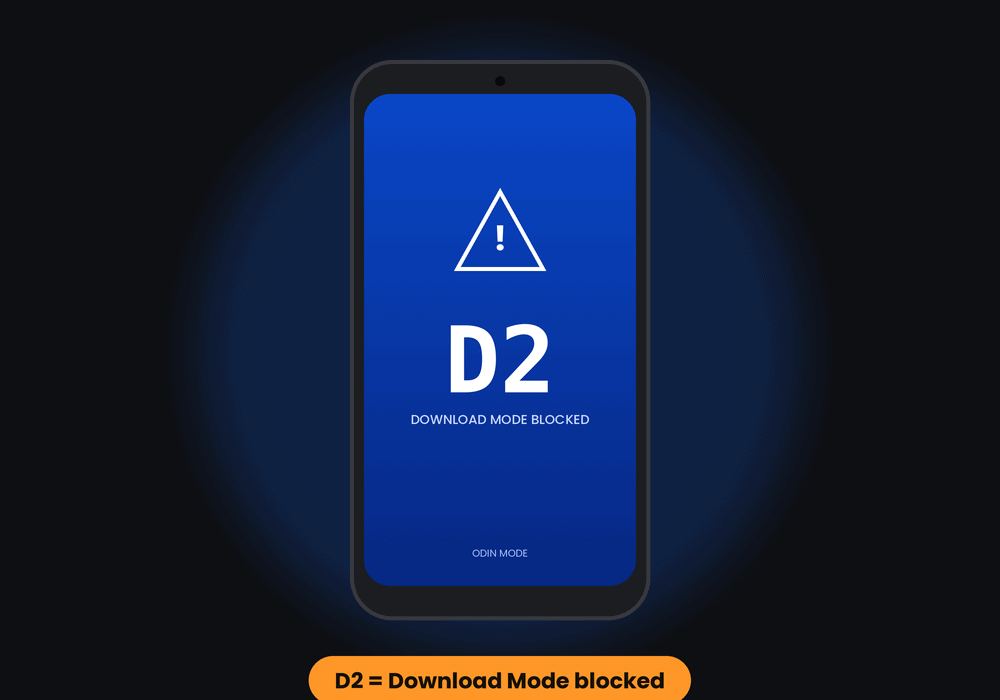
Samsung download mode not working after a One UI 8.5 update? Instead of the familiar Odin screen, your Galaxy shows a blank blue screen with a D2 error when you use the old button combination. Don’t worry: Download Mode has not been removed. Samsung has simply placed one extra step in front of it. This guide explains why it happens, how to enter Download Mode through Maintenance Mode, what to try if the error stays, and how to flash safely with Odin.
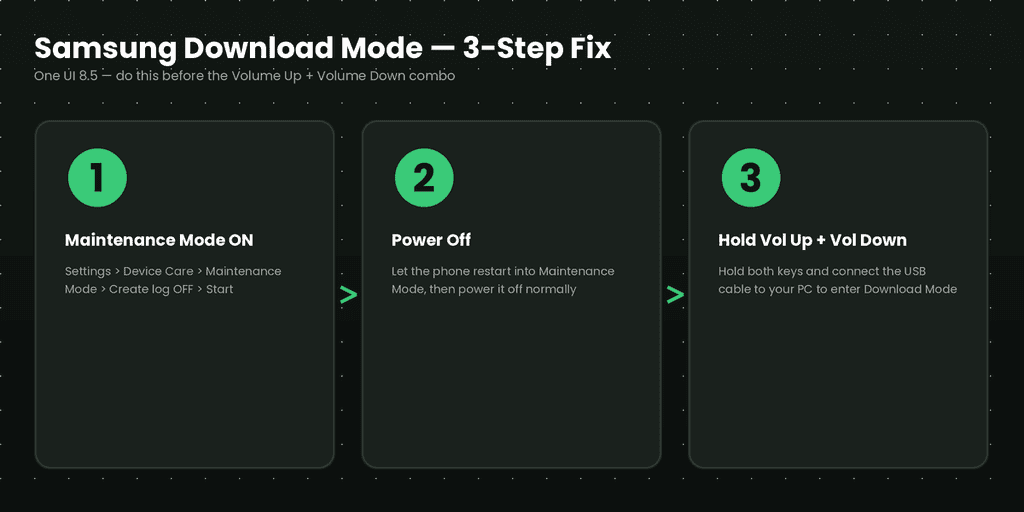
Quick answer: Turn on Maintenance Mode (with “Create log” switched off), power the phone off, then hold Volume Up + Volume Down while you connect the USB cable. Press Volume Up on the warning screen and Odin will detect your phone.
Why Samsung Download Mode Is Not Working on One UI 8.5
On recent One UI 8.5 firmware, the classic method (power off, hold Volume Up and Volume Down, plug in the USB cable) fails when any screen lock is set. The phone stops at a blue screen with a D2 error code, and some users also see D116. Odin never gets a connection, so you cannot flash firmware or recover a soft-bricked phone.
Samsung has not officially explained the change. Most technicians believe it is a security measure meant to block unauthorised flashing, make bootloader exploits harder and limit firmware downgrades. The good news is that the fix takes only a minute or two.
What You Need Before You Start
- A Galaxy phone running One UI 8.5, charged to at least 50%
- An original or good-quality USB cable
- A Windows PC with the Samsung USB Driver installed
- The latest Samsung Odin Tool
- Firmware that matches your exact model number and region
- A full backup of your photos, chats and files
Method 1: Enter Download Mode With Maintenance Mode (Recommended)
This is the easiest and safest fix, because you keep your PIN, fingerprint and Face Unlock.
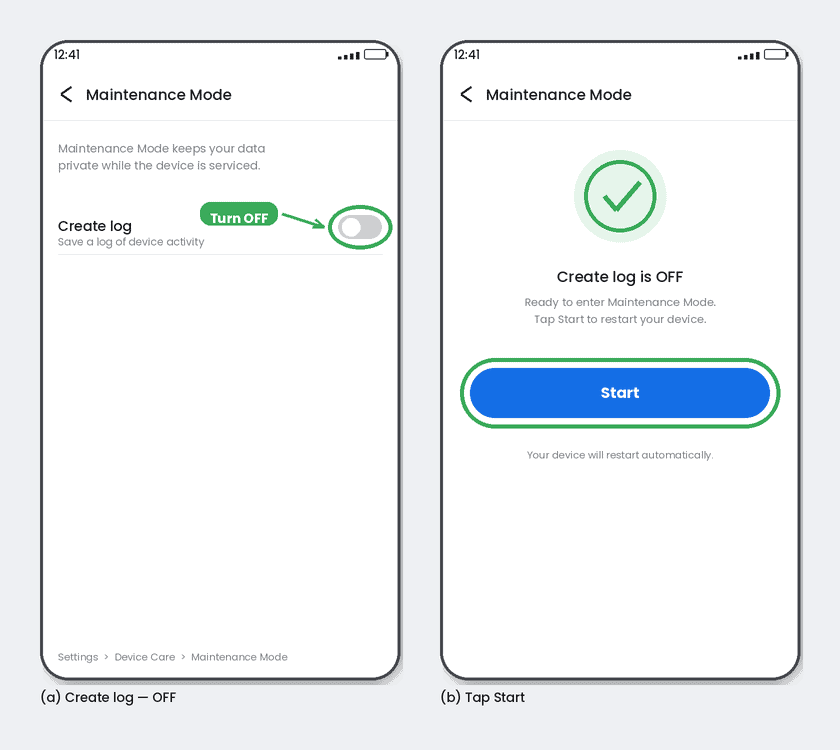
- Open Settings and go to Device Care (called Battery and Device Care on some builds).
- Scroll to the bottom and tap Maintenance Mode.
- Switch Create log off. This step matters, because with logging on, several users could not enter Download Mode.
- Tap Start. The phone restarts into Maintenance Mode.
- Power the phone off normally while you are still in Maintenance Mode.
- Hold Volume Up + Volume Down and, while holding both, connect the USB cable to your PC.
- When the warning screen appears, release the keys and press Volume Up to continue.
- The blue Download Mode screen opens. Launch Odin and check that the ID:COM box shows your phone.
| IMAGE 5 Place: End of Method 1, before the Note What to show: Odin window on your PC with the ID:COM box showing the phone as added. This is the success proof and builds trust. Blur any serial number. File: odin-id-com-added-samsung.webp Alt: Odin detecting Samsung phone in download mode with ID:COM added |
Note: A few models use a different key combination, such as Volume Down + Power/Bixby. If the phone does not respond, try the combination listed for your model.
Method 2: Temporarily Remove the Screen Lock
If Maintenance Mode is not available, several users report that removing the screen lock is enough to bring the old button method back.
- Go to Settings > Lock screen and AOD > Screen lock type.
- Choose None and confirm. Saved fingerprints and face data will be removed.
- Power off, hold Volume Up + Volume Down and connect the cable.
- After flashing, set up your lock screen and biometrics again.
| Situation | Best option | Keeps your lock screen? |
| Phone boots normally | Method 1: Maintenance Mode | Yes |
| Maintenance Mode will not start | Method 2: Remove screen lock | No, biometrics are deleted |
| Phone is stuck in a bootloop | Authorised service centre or professional service tool | Not applicable |
Still Seeing the D2 or D116 Error?
- Confirm that Maintenance Mode is really active and “Create log” is off, or that the screen lock is set to None.
- Try another USB port or cable. Odin sometimes needs up to a minute to detect the phone, so reconnect the cable and wait.
- Update the Samsung USB Driver and restart the PC. If Odin still shows errors, read our Odin common error fix guide.
- If the phone is stuck in a bootloop, you cannot open Maintenance Mode because the system will not start. In that case, an authorised service centre is the safer route.
- Once you are in Download Mode, also check the KG STATE line at the top of the screen, especially on a used phone. See our guide to Samsung KG lock (Knox Guard) to understand what it means.
Flash Safely With Odin After You Enter Download Mode
Getting into Download Mode is only half the job. A wrong flash can leave the phone unusable, so follow these rules:
- Use firmware for your exact model number and region. Never mix files from different models.
- Load all required files (BL, AP, CP and CSC) into the matching Odin slots. Use CSC for a clean install, or HOME_CSC to try keeping your data.
- Do not unplug the cable, close Odin or exit Maintenance Mode while flashing.
- Follow the instructions that come with your firmware package. One owner reported a phone stuck after a failed flash because a required PIT file was left out.
- Back up first. A full flash with CSC can erase your data.
Frequently Asked Questions
Did Samsung remove Download Mode on One UI 8.5?
No. Download Mode is still there, but Samsung hid it behind an extra step. You now need Maintenance Mode, or a removed screen lock, before the button combination works.
Will Maintenance Mode delete my data?
No. Maintenance Mode is designed to protect your personal data during repair, and it does not wipe the phone by itself. Flashing full firmware can erase data, so always back up first.
Does this work on the Galaxy S26 and mid-range phones?
Users report the same behaviour on flagships such as the Galaxy S26 Ultra and on mid-range models like the Galaxy A16, as long as they run One UI 8.5 firmware.
Can I use these steps on someone else’s phone?
Only on devices you own or are authorised to service. Flashing a locked or stolen phone can be illegal.
Conclusion
If Samsung download mode is not working, the fix is simple: enable Maintenance Mode with “Create log” off, power down, then use Volume Up + Volume Down with the USB cable connected. If that fails, remove the screen lock temporarily and try again. Once Odin detects your phone, flash the correct firmware carefully and keep a backup ready. Bookmark this page, because Samsung may change the rules again with the next update.