Last Updated on October 13, 2026 by XDA Team
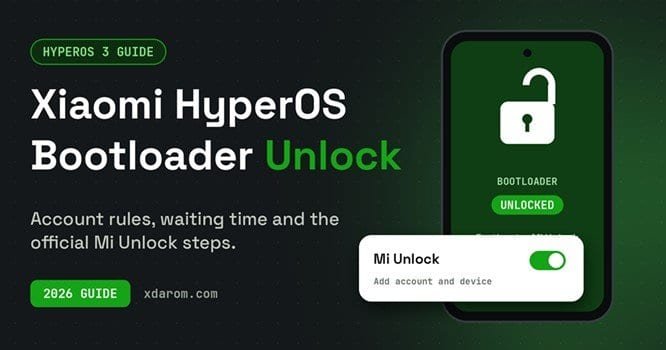
Xiaomi HyperOS bootloader unlock has become slower and stricter than the old Mi Unlock days.
Instead of a simple countdown, you now need a Xiaomi Account with some age, permission from the
Xiaomi Community app, and a waiting period before the Mi Unlock tool will work. This guide explains the
Quick answer: On global-region Xiaomi, Redmi and POCO phones, use an account that is at least 30
days old, apply in the Xiaomi Community app, add your account and device in Developer options, wait
for the unlock period, then unlock with Mi Unlock on Windows. Unlocking wipes all data
Can You Still Unlock a HyperOS Bootloader in 2026?
Yes, on most global-region phones, through Xiaomi’s official permission system. Devices sold for
mainland China are a different story: reports say they can not be unlocked officially. Phones with Unisoc
chips are also not officially unlockable. Xiaomi changes the rules from time to time, so always check what
your Community app shows today.
What You Need Before You Start
A Xiaomi, Redmi or POCO phone with HyperOS and a global region
- A Xiaomi Account you control, active for at least 30 days
- A working SIM card with mobile data
- A Windows PC, a good USB cable and the Xiaomi Mi USB Driver
- The official Mi Unlock tool from Xiaomi
- A full backup, because unlocking erases everything
- At least 50% battery
For a quick overview of the older tool, see our Xiaomi Mi Bootloader Unlock Tool page
Step 1: Prepare the Phone
1 Sign in to the same Xiaomi Account in Settings.
2 Go to Settings > About phone and tap the OS version seven times to turn on Developer options.
3 Open Additional settings > Developer options and enable OEM unlocking and USB debugging.
Menu names can differ slightly between regions and versions
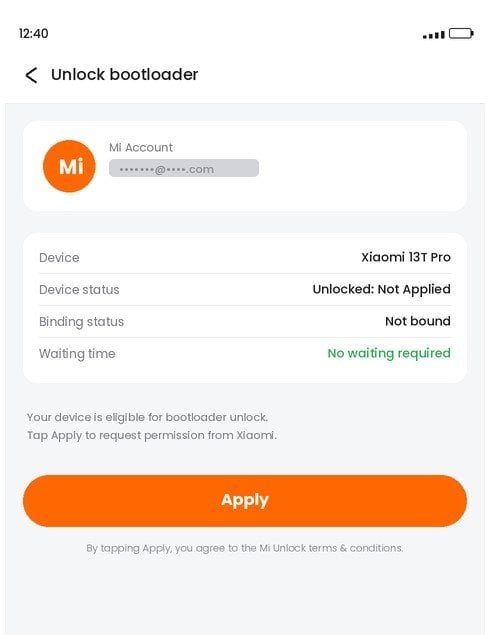
Step 2: Request Permission in the Xiaomi Community App
Install the Xiaomi Community app from an official source and set its region to Global. Sign in with the
same Xiaomi Account, then open Me > Unlock bootloader > Apply. Some guides mention a short
knowledge quiz. If you do not see the unlock option, clear the app data, restart it and pick the Global
region again. Approval can be quick or take several days, depending on the account and the current
rules
Step 3: Add Your Account and Device
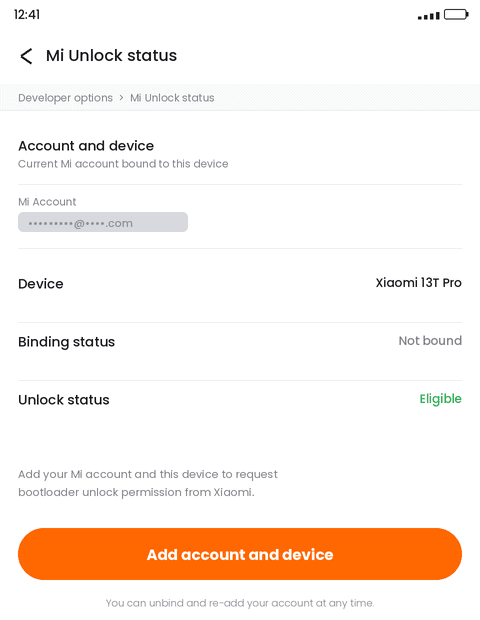
Open Developer options > Mi Unlock status > Add account and device. Keep the SIM inserted and
mobile data on, because the check goes through Xiaomi’s servers. If the phone accepts the request, it
will show a waiting time.
Step 4: Wait for the Unlock Period
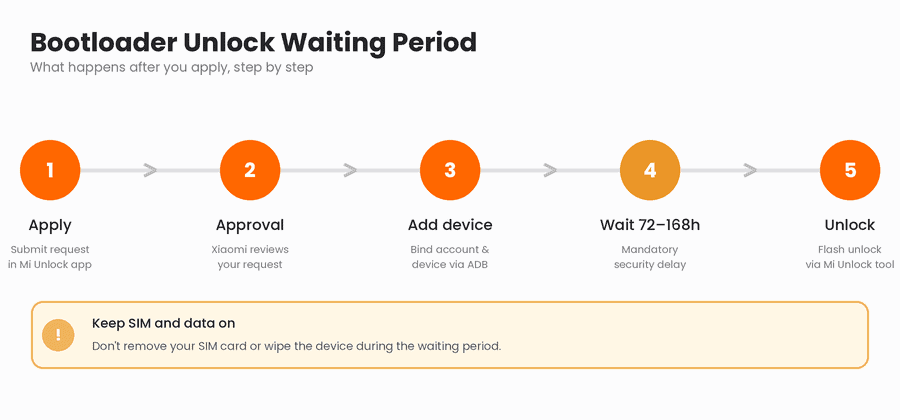
Many phones show a waiting period, with examples between 72 and 168 hours. Leave the phone signed
in to your Xiaomi Account, with the SIM and network active. Do not reset the phone or change the
account during this time.
Step 5: Unlock With Mi Unlock on Windows
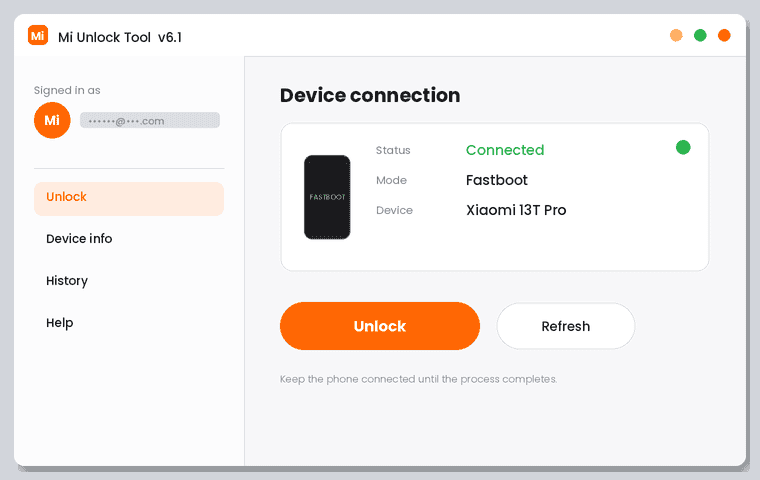
1 Power the phone off, then hold Volume Down + Power until the Fastboot screen appears.
2 Connect the phone to the PC and open Mi Unlock.
3 Sign in with the same Xiaomi Account and wait until the phone shows as connected.
4 Press Unlock and confirm the warnings.
5 The phone reboots and erases all data. Then check Developer options > Mi Unlock status for
“Unlocked”.
If you plan to install firmware afterwards, our Xiaomi Mi Flash Tool guide covers the flashing side.
Common Errors and Fixes
| Problem | What to try |
| “Application limit quota reached” | The daily quota is full. Try again after it resets, which users report happens at 00:00 Chinese time. |
| Unlock option missing in the app | Check the 30-day account age, clear app data and choose the Global region. |
| Account treated as China-based | Sign out, clear the Community app data, restart the phone and sign in again with a SIM and data on. |
| Area query failed | Read our fix for Account Application Area Query Failed |
| Mi Unlock cannot see the phone | Reinstall the USB driver, use another cable or port, and confirm Fastboot mode. |
| Phone says “This device is locked” after unlocking or flashing | That is a separate Mi Account lock, not a bootloader error. See Redmi: Mi Account or Google FRP. |
Risks to Know Before You Unlock
All data is erased, so back up first.
- Your warranty may be affected, depending on your region.
- Some banking, payment and game apps may refuse to run on an unlocked phone.
- An “unlocked” warning appears at every boot.
- Xiaomi limits how many phones one account can unlock. One community list mentions one phone per
30 days and four per year, but limits change, so check your own account
Avoid Paid Bypass Scripts and Services
You will see scripts and paid services that promise to skip the waiting period. They are not official, they
may put your Xiaomi Account at risk, and many are scams. If the official route is closed for your phone, it
is safer to wait than to pay a stranger
Frequently Asked Questions
Does unlocking the bootloader delete my data?
Yes. The phone is factory reset during the unlock, so back up everything first.
Does this work on HyperOS 3 and Android 16?
Guides for HyperOS 3 follow the same overall path, but the details and quotas can change. Follow what
your Community app shows.
Can I relock the bootloader later?
Yes, but only with matching stock firmware installed. Relocking with modified software can leave the
phone unable to boot.
Why should I unlock at all?
Unlocking lets you flash custom recovery, custom ROMs or root tools. If you only want a cleaner system,
you may not need to unlock
Conclusion
The Xiaomi HyperOS bootloader unlock is possible on global phones, but you need patience: account
age, Community app permission, a waiting period and then Mi Unlock. Back up your data, follow the
official steps and skip the paid shortcuts. Rules can change, so bookmark this page and check back
before your next unlock