Last Updated on November 26, 2026 by XDA Team
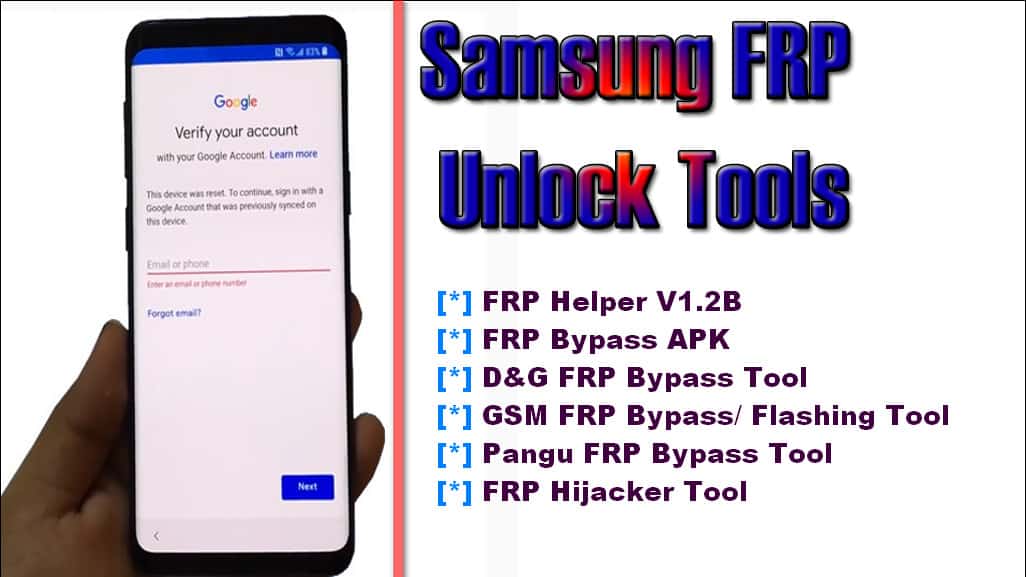
Samsung FRP Tool Pro is a Windows-based utility that technicians use to clear the Factory Reset Protection (FRP) screen on Samsung phones after a factory reset. This guide covers the current 2026 build: what it actually does, how to set it up correctly, which devices it supports, the errors people run into, and the official alternative Google and Samsung provide if you can’t verify ownership of the device.
What Is Samsung FRP Tool Pro
Samsung FRP Tool Pro connects to a Samsung device in Download Mode or over ADB and resets the Google account verification lock that appears after a factory reset. Repair shops use it most often when processing trade-ins, refurbished stock, and customer devices where the previous owner’s Google account can’t be recovered through normal channels. Unlike a generic one-click app, it works per device model, which is both its strength and its biggest source of confusion for first-time users.
When You Need This Tool
- You bought a used or refurbished Samsung phone and the previous owner’s Google account is still locked to it
- A factory reset was performed — by you, a previous owner, or a repair shop — and the original account credentials were lost
- You manage trade-in or refurbished inventory and need to clear FRP before resale, with proof of ownership documented for each unit
- A device came back from repair with the screen or digitizer replaced and triggered an unexpected FRP lock
Supported Devices and Android Versions
The current build supports most Samsung Galaxy A, M, and F series phones and tablets running Android 11 through Android 15, across both Exynos and Snapdragon chipset variants. Coverage varies by security patch level — Samsung tightens its FRP protections with nearly every monthly patch, so a method that worked on last year’s build may not work on a phone updated this month. Before you start, check the tool’s device list for your exact model code (for example SM-A155F, not just “Galaxy A15”) rather than assuming the family is covered end to end.
How to Set Up Samsung FRP Tool Pro
- Install the Samsung USB drivers first — the tool can’t detect the phone reliably without them.
- Download the Samsung FRP Tool Pro package and extract it to a folder path with no spaces or special characters.
- Run the setup file as Administrator, and allow it through Windows Defender or your antivirus if prompted, since unsigned diagnostic tools commonly trigger a warning.
- Connect the Samsung phone via a data-capable USB cable and put it into Download Mode — power off, then hold Volume Up + Volume Down while plugging in the cable, and confirm with Volume Up.
- Select your exact model from the tool’s device list. Using the wrong model profile is the single most common cause of a soft-bricked phone, so double-check the model number printed on the device or in Settings before confirming.
- Click the FRP reset option and wait for the process bar to finish; the phone reboots automatically once it’s done.
Common Errors and Fixes
- Device not detected Reinstall the USB driver, try a different USB port directly on the motherboard, and avoid USB hubs or cheap charging-only cables.
- Stuck at “Reading Info” Confirm the phone is actually in Download Mode and not just powered off with a black screen — the two look similar at a glance.
- Process completes but the FRP screen returns after reboot Your device’s security patch level may need a newer tool build; check for an update before retrying the same version.
- Phone reboots into a bootloop Reflash the official stock firmware for your exact model code and region to recover the device.
- “Unauthorized” or driver timeout errors Revoke USB debugging authorizations on the phone if possible, then reconnect and accept the prompt fresh.
Safe Alternatives When You Can’t Verify Ownership
If you can’t confirm ownership of the device, or the tool doesn’t yet support your phone’s current security patch, Samsung and Google both offer official routes that don’t carry any data-loss or bootloop risk. For a Samsung Account lock, Samsung’s own account recovery can verify ownership and release the device. For the Google verification screen specifically, Google’s account recovery flow is the intended path, and it’s the one Samsung itself points users toward in its own support documentation.
Frequently Asked Questions
Is Samsung FRP Tool Pro free to use?
Does this tool work on every Samsung model?
Will I lose my data?
Is using an FRP tool legal?
What if my model isn’t listed?
Conclusion
Samsung FRP Tool Pro remains useful for technicians clearing FRP on devices they’re authorized to service, but it isn’t a universal fix — device support and security patch level both matter more than the tool’s version number. Install the correct USB driver first, double-check the exact model before running a reset, keep ownership documentation on file, and fall back to Samsung’s or Google’s official recovery route whenever ownership can’t be verified.